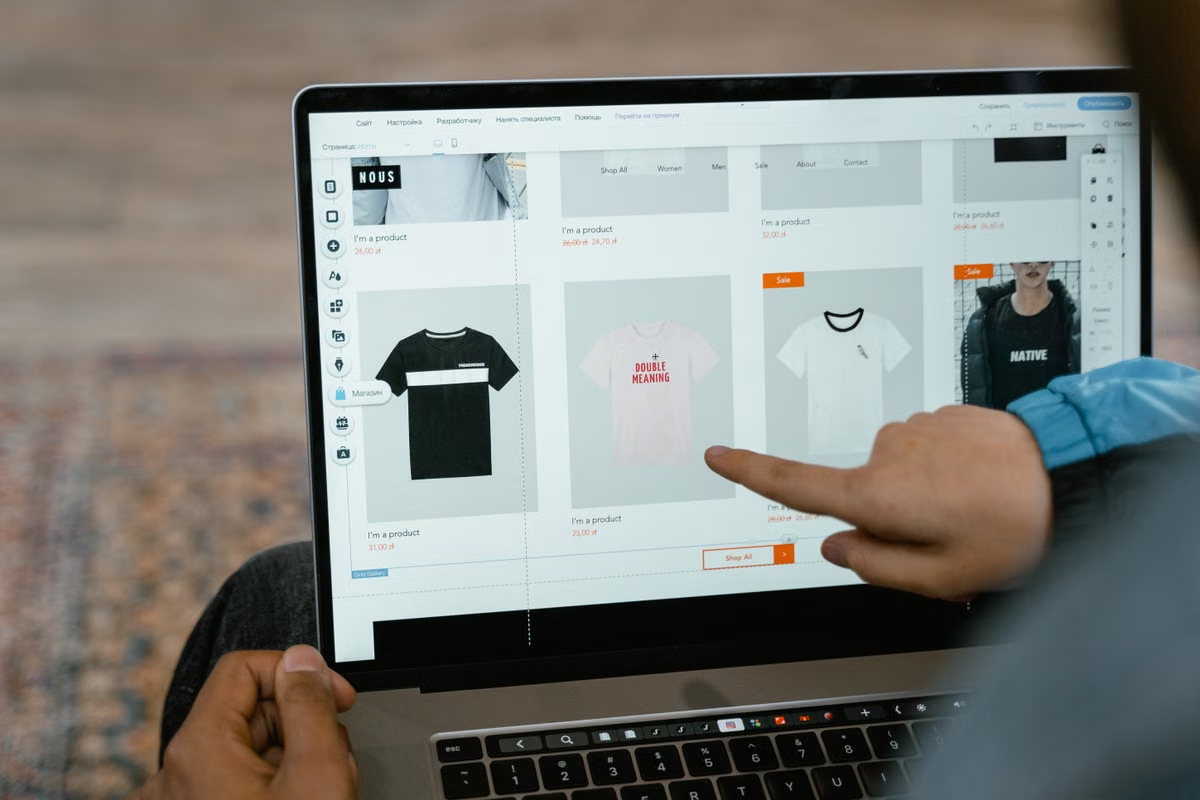
Shopify’s current Canvas requirements page labels the feature as early access, so eligibility and theme support must be checked against the live requirements—not assumed for every store. This week, create an unpublished theme copy, review product pages, shopping flows, localization, Markets, and app compatibility, then publish only when the known limitations and rollback owner are clear. Shopify’s Canvas requirements are the authority for current availability and restrictions.
Who should use this checklist
Shopify sellers preparing to create or change a Canvas theme and assess its fit for an existing store.
Store operators checking product presentation, localized content, and the customer journey.
Business and release owners assigning review responsibilities and planning a fallback.
Last updated October 26, 2026. Canvas eligibility, theme support, and feature boundaries were checked against Shopify’s Canvas requirements, customization guidance, and the official theme publishing and app documentation linked below. Shopify may update early-access terms, so verify the current admin and guidance before acting.
Confirm Canvas eligibility before you assign work
The store owner or person with the right admin access should confirm whether Canvas is available in the store and whether the installed theme falls within Shopify’s current supported scope. Treat this as a go/no-go check, not a detail to discover after the team has rebuilt pages.
Shopify’s documentation describes Canvas as an early-access feature and sets out its use requirements, supported themes, editing approach, and limitations. It does not establish that every store, installed theme, or workflow qualifies. Check the current requirements page and the Canvas entry in your own admin before you promise a launch date.
| Review item | What the owner should verify | Decision if it does not match |
|---|---|---|
| Store eligibility | Canvas is available to your store under Shopify’s current requirements | Keep the current theme live; do not build a release plan around assumed access |
| Existing theme | The theme is within the supported scope described by Shopify | Assess Canvas separately; do not assume it will modify or carry over the existing theme |
| Admin access | The person doing the work can access the relevant theme and store settings | Assign an authorized owner before editing |
| Editing boundary | The team understands what Canvas changes and what remains outside its controls | Add external settings to the review plan |
Use Shopify’s Canvas customization instructions to understand the documented creation and editing path. Record the date you checked the requirements, the store in which you checked them, and the person responsible. That note helps when access or a feature boundary changes between planning and release.
A practical case: an operator sees Canvas in an account and assumes the installed storefront theme can be edited directly. The safer move is to verify the supported-theme condition first. If it does not fit, the team should pause the migration decision instead of rebuilding around an unsupported assumption.
Have the operator test a copy, not the published storefront
Create or use an unpublished theme copy for review. Shopify’s theme guidance treats copies as separate theme instances, so edits in the copy are not a substitute for checking the exact copy you intend to publish. Confirm that the reviewed version is the latest version prepared for release, not an earlier draft. See Shopify’s theme publishing guidance.
| Area to review in the copy | What to inspect | Evidence to keep |
|---|---|---|
| Homepage | Branding, navigation, featured content, and prominent calls to action | Screenshot and note of the copy reviewed |
| Product page | Product title, media, variants, availability, and supporting information | Screenshot plus any missing or misleading content |
| Collection page | Product ordering, filters or navigation controls, and consistency with the collection’s purpose | Example collection and observed issues |
| Key content pages | Policies, shipping information, contact details, and other pages customers rely on | Page list and owner for unresolved content |
| Theme version | The copy matches the current release candidate | Theme name or admin identifier and review status |
The owner of product content should check the information itself, not just its visual arrangement. Verify that variant choices are understandable, product images load, and important purchase information is visible on the page. A polished layout cannot correct incomplete product data.
For each issue, capture the page, the condition that produced it, and the follow-up owner. If a section is changed after review, mark the relevant check as pending again. The final decision must apply to the copy that will actually go live.
Compare market, language, and application needs
Shopify Markets and a theme are related parts of a storefront, but a Canvas preview alone is not proof that every market or language is configured correctly. The localization owner should compare the store’s actual target markets with the content and settings customers will encounter. Shopify’s Markets customization guidance describes the scope of market customizations; translation guidance explains how translation work is managed.
| Dependency | What to verify | Where to check |
|---|---|---|
| Store language | The language intended for the customer is available and the relevant content has been reviewed | Translation tools and storefront |
| Market presentation | The right market-specific content or customization is present where required | Markets settings and storefront view |
| Product details | Titles, descriptions, option labels, and customer-facing information make sense for the target audience | Product records and theme copy |
| App-provided content | Translated or market-sensitive app content appears as intended | App configuration and storefront behavior |
Keep a clear distinction between what the theme controls and what is maintained elsewhere. If a translation or market customization is outside the Canvas editing flow, name its owner and add a separate review point. Do not infer that two markets render identically because one preview looks correct.
Review boundary: A theme editor preview helps you inspect a theme configuration. It does not, by itself, establish that every market, language, app, browser, or customer device will present the same experience.
Next, the app owner should inventory both theme app blocks and app embeds used by the live store. Shopify explains how apps add functionality to themes, but the existence of an app in the store does not prove that each component is active or behaves correctly in a different theme. Test the actual customer action supported by each important app.
| App or theme dependency | Review in the Canvas copy | If it fails |
|---|---|---|
| App block placed in a section | Confirm it is available in the relevant template and displays expected content | Check app setup and supported placement; ask the app provider if needed |
| App embed | Confirm the embed is enabled where required and does not conflict with storefront behavior | Record the dependency and restore or replace it before release |
| Existing theme feature | Compare the live theme’s function with the Canvas copy | Decide whether the function is still needed and how it will be provided |
| Theme update or customization | Identify any behavior that depends on the existing theme | Keep the current theme until an equivalent has been verified |
The owner should not close an app check because an editor thumbnail looks plausible. Open the storefront preview, perform the related action, and record what happened. For example, if an app provides a product-related interaction, test it on a product page rather than only checking whether its block appears in the editor.
Run the customer path across real viewing conditions
The test lead should review navigation, product selection, cart behavior, and the route to checkout entry. Check the pages and actions that matter to your store, and repeat the review at the screen sizes and browser conditions your customers use. Keep screenshots with the test notes so another reviewer can reproduce the issue.
Shopify’s Canvas navigation guidance can help you understand its documented navigation controls: Canvas navigation. It does not replace a storefront walkthrough. A menu that appears in the editor still needs to be opened and followed in the preview. Likewise, a visible purchase button is not proof that product selection and cart actions work as intended.
Use this sequence:
- Open the exact unpublished theme copy under review and confirm it is the intended release candidate.
- Start at the homepage. Follow the main navigation to a relevant collection or landing page.
- Open a representative product page. Check the product details, media, options, and purchase controls.
- Select an available product option and add the item to the cart. Confirm the cart reflects the choice you made.
- Follow the checkout entry point far enough to confirm the intended transition, without treating a theme preview as proof of a completed order.
- Repeat the relevant page checks at the screen sizes and in the browsers your team supports.
- Save screenshots, test conditions, observed results, and unresolved issues with the review record.
If your customer base includes macOS Safari users, test with Safari in a real macOS environment rather than treating a Canvas preview as a substitute. Record the browser and operating-system conditions, the page tested, and what the user action produced. Do not generalize a finding beyond the conditions you actually tested.
This is where teams often find a gap between “the page renders” and “the customer can complete the intended action.” A product page may appear complete while an option label is confusing, an app component is absent, or a cart action does not preserve the selected item. Keep each observation tied to a reproducible page and action.
Use decision branches to decide whether to publish
Apply the release decision to the reviewed copy, not to Canvas in general. The store owner should confirm eligibility; operators should sign off on content and customer paths; and the release owner should confirm the rollback plan.
- If the store meets the current Canvas requirements, the existing theme is supported, and the team has the required access, then continue testing the unpublished copy. Otherwise, leave the published theme in place and resolve eligibility or access first.
- If product pages, collections, and key content match the release brief, then proceed to market and app checks. Otherwise, return the copy to its content owner.
- If language and market requirements have been checked in the relevant tools and any out-of-theme settings have owners, then mark localization as reviewed. Otherwise, keep that item open; a single preview is not evidence for every market.
- If required app blocks, embeds, and existing theme functions pass the customer action they support, then continue to the release review. Otherwise, identify a verified replacement or retain the existing theme.
- If the customer path has been tested under the intended browser and screen conditions, unresolved issues are documented, and the previous published theme can be restored, then the release owner can decide whether to publish. Otherwise, delay publication or approve only with a clearly recorded observation plan.
A useful release record names the theme copy, review owners, test conditions, open issues, and the person authorized to restore the prior theme. Shopify’s publishing instructions explain the platform’s publishing process. Read them before making the change, and confirm that the release owner can identify the previous theme in the admin.
The decision should be one of three outcomes: publish, pause for fixes, or continue observing the copy. Do not let an attractive preview override a known compatibility issue or an unassigned rollback responsibility.
FAQ: resolve the remaining Canvas checks
What should I review before publishing a Shopify Canvas theme?
Confirm that your store and existing theme meet Shopify’s current Canvas requirements, then work in an unpublished copy. Review key templates, product information, navigation, language and market presentation, app blocks, and the customer path from product selection to checkout entry. Record unresolved issues, the theme version you tested, and who can restore the previous published theme.
Can I use Shopify Canvas with a third-party theme already installed?
Do not assume Canvas can edit or preserve every installed theme. Shopify’s requirements page defines the supported themes and use conditions, and those details can change. Check the current page and the Canvas entry in your own admin before planning a migration. If your theme is unsupported, keep it as the active storefront and assess Canvas separately rather than treating it as a direct in-place upgrade.
Does a Canvas theme handle Shopify Markets and multiple languages automatically?
A theme preview does not prove that every market will show the intended language, product information, or regional customization. Check the current Canvas limitations, then review translations and market-specific settings in the relevant Shopify tools. Test the storefront in the market and language combinations your business actually serves; record any settings maintained outside the theme so they are included in release review.
How should I check app blocks in a Shopify Canvas theme?
Inventory the app blocks and app embeds your live theme depends on, then verify that each appears and behaves as expected in the unpublished Canvas copy. Shopify’s theme app guidance explains how app functionality can be added to themes, but an editor preview alone cannot confirm the full customer flow. Test the relevant storefront action and contact the app provider if a block is missing or behaves differently.
Make the release call with a fallback ready
Your current published theme has one clear advantage: it is already serving the storefront, so you avoid introducing an unverified theme change. Its drawbacks are that it may not meet the reason you are considering Canvas, it may leave an existing presentation or workflow problem unresolved, and it can limit testing of a new design. Canvas is not automatically the better choice: eligibility, supported-theme scope, and app behavior can block a safe release.
If the copy passes functional review but your team still needs a real macOS Safari check, use a browser environment that matches the test conditions you need. A remote Mac can provide a macOS environment without buying hardware, but it adds network dependence and is not a fit when you need local physical peripherals or sustained, uninterrupted work. Before choosing a temporary setup, review MangoVM’s service and access guidance and compare it with the conditions in your test plan. Review MangoVM’s Mac options only if that temporary test setup fits your checklist; otherwise, use an available local Mac and keep the release decision tied to what you actually verified.
Frequently asked questions
What should I review before publishing a Shopify Canvas theme?
Confirm that your store and existing theme meet Shopify’s current Canvas requirements, then work in an unpublished copy. Review key templates, product information, navigation, language and market presentation, app blocks, and the customer path from product selection to checkout entry. Record unresolved issues, the theme version you tested, and who can restore the previous published theme.
Can I use Shopify Canvas with a third-party theme already installed?
Do not assume Canvas can edit or preserve every installed theme. Shopify’s requirements page defines the supported themes and use conditions, and those details can change. Check the current page and the Canvas entry in your own admin before planning a migration. If your theme is unsupported, keep it as the active storefront and assess Canvas separately rather than treating it as a direct in-place upgrade.
Does a Canvas theme handle Shopify Markets and multiple languages automatically?
A theme preview does not prove that every market will show the intended language, product information, or regional customization. Check the current Canvas limitations, then review translations and market-specific settings in the relevant Shopify tools. Test the storefront in the market and language combinations your business actually serves; record any settings maintained outside the theme so they are included in release review.
How should I check app blocks in a Shopify Canvas theme?
Inventory the app blocks and app embeds your live theme depends on, then verify that each appears and behaves as expected in the unpublished Canvas copy. Shopify’s theme app guidance explains how app functionality can be added to themes, but an editor preview alone cannot confirm the full customer flow. Test the relevant storefront action and contact the app provider if a block is missing or behaves differently.
Validate Your Storefront on a Dedicated Cloud Mac
Use MangoVM to review your storefront in a dedicated physical Mac environment before launch.